Embeddable Clocks Help
Swatch Internet Time embeddable clocks are small Javascript clocks that you can embed in your own web pages to display the current time in beats. There are a variety of premade styles and you can customize the designs to match your own site exactly. Here is an image of an example embeddable clock which display the Swatch Internet Time:

Using Preset Clocks
When you first come to the demo site you will see a list of names and see a variety of clock styles. These are preset clocks that have already been created for you. Just pick a design and click the "Get Code" button. You will be taken to a page where you can copy and paste some simple HTML code to insert into your web site to display that clock style. With the preset clock designs you don't have to mess around with settings or configure anything.
You can also use the preset clock designs as part of more complex designs that you create. The minimal plain clocks just show numbers. You could insert the Swatch Internet Time into a clock frame or design of your own creation. You focus on creating the graphics and layout and let the embeddable clock keep track of updating the Swatch beats for you automatically.
Customizing Your Clock
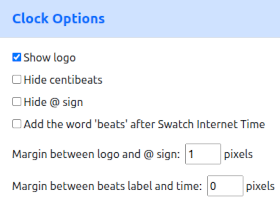
If you want to customize one of the existing preset clock designs to better match your web site just click the "Customize" button. This will take you to a page where you can tweak the parameters of the preset design. You can change things like: colors, font size, frame borders, margins, padding, logos, clock components, and more! While you're adjusting the settings, you'll see a live preview of the clock design you're creating. For perfect blending with your own site you can set the background color or change the background to be transparent. You can also turn the clock frame border on or off and adjust the border thickness and color.
If you want to start over, you can click the "Reset to Default" button and your clock will be set back to the default style. When you are finished adjusting your design you can click the "Get Code" button to get the HTML code to insert into your web site to display your custom clock style.
Getting Embed Code
On both the home page and the customize page you'll see a button labeled "Get Code". Clicking this button will take you to a page which shows you some HTML code. You can copy this code to your clipboard using the "Copy Code" button. Then, paste the code into your HTML document where you want your Swatch Internet Time clock to appear. The embed code will look something like this: <div class="internetTime" data-style="rectangle-small"></div>
Adding Javascript and CSS Links
In order for the embeddable clock to work properly, you have to load the library in the <head> section of your HTML document. When you go to the Get Code page you'll see the code you need to insert into your document. This is the code which loads the library and the styles for the clocks. Without this code, your clock embed code will not look or work properly. There are two lines that you need to insert: a javascript file (.js) and a stylesheet file (.css). The easiest way to include this code is to use the CDN links. These load the files from an external service and make the library and styles available without having to download anything. If you prefer, you can also download the clocks library and upload the files to your own server. Using this method you can have a local installation which does not rely on an external CDN provider. The links to the CDN will look something like this:
Creating Your Own Custom Clock Styles
You can also create your own custom clock styles by passing custom data-* attributes tags to the clocks library. Here is a list of all the custom data-* attributes that the library accepts, what they do, their types and typical defaults. If you want to customize an existing style you can set the data-style attribute to the name of the style and then include the data-* attribute tags of the parameters you want to override.
data-style
Example: <div class="internetTime" data-style="rectangle-small"></div>
Type: string
Description: The preset style name (e.g. 'rectangle-small', 'minimal-logo-medium') or 'custom' to indicate a fully-specified custom configuration. When present and equal to a known preset name, the library will apply the matching preset defaults before applying overrides.
data-width
Example: data-width="95"
Type: integer (pixels)
Default: preset default, typically between 40 and 145.
Description: Frame width in pixels.
data-height
Example: data-height="30"
Type: integer (pixels)
Default: preset default.
Description: Frame height in pixels.
data-bg-color
Example: data-bg-color="#000000"
Type: CSS color string or 'transparent'
Default: preset default (e.g. '#FFFFFF' or 'transparent' for some minimal presets)
Description: Background color for the clock frame.
data-font-color
Example: data-font-color="#FFFFFF"
Type: CSS color string
Default: preset default (usually '#000000' or '#FFFFFF')
Description: Color used for the numeric time and text in the clock.
data-font-size
Example: data-font-size="16"
Type: integer (px)
Default: preset default (library presets vary)
Description: Base font size used to render the time. Larger values will often increase padding or influence Auto‑fit sizing in the demo.
data-border-style
Example: data-border-style="pill"
Type: string
Values: commonly 'rectangle', 'pill', 'circle', 'square' (depends on preset definitions)
Default: preset default
Description: Controls the frame shape and how internal layout is handled.
data-border-width
Example: data-border-width="1"
Type: integer (px)
Default: preset normalized or library default
Description: Frame border thickness in pixels.
Notes: The library clamps this value to the 0..5 range to avoid extreme borders that would break small embeds.
data-frame-border-radius
Example: data-frame-border-radius="rounded-2"
Type: keyword or CSS length (e.g. 'none', 'rounded-1', '12px', 'full', '50%' for circle)
Default: preset computed value (the library maps tokens like 'rounded-2' to pixel values)
Description: Controls the corner rounding of the frame.
data-frame-border-color
Example: data-frame-border-color="#000000"
Type: CSS color
Default: preset default
Description: Color used for the frame border.
data-frame-show-border
Example: data-frame-show-border="false"
Type: boolean string: "true" / "false"
Default: inferred by preset normalization
Description: Explicit flag to show or hide the frame border. When present, this value is treated as authoritative for visibility.
Alias: the library also accepts data-show-border as a shorthand alias for the same semantic.
data-frame-padding
Example: data-frame-padding="4px 6px"
Type: CSS-like padding string (e.g. "4px 6px" or "4px 6px 4px 10px" or a single value like "5px")
Default: preset default or computed padding based on font-size
Description: Frame padding; accepts single or multiple values. The demo accepts numeric padding controls and converts them to 'px' values when generating output.
data-clock-at-sign-left-margin
Example: data-clock-at-sign-left-margin="2"
Type: integer (px)
Default: preset default (often 0-2)
Description: Left margin applied to the @ sign, used to tweak spacing between logo/@ sign/time.
data-clock-beats-label-left-margin
Example: data-clock-beats-label-left-margin="6"
Type: integer (px)
Default: preset default
Description: Left margin for the 'beats' label; useful for fine tuning spacing.
data-show-logo
Example: data-show-logo="true"
Type: boolean string
Default: preset default
Description: Whether to render the small Swiss flag/logo before the time.
data-hide-centibeats
Example: data-hide-centibeats="true"
Type: boolean string
Default: preset default
Description: Controls whether the fractional centibeats (.00) are hidden. The attribute uses the 'hideCentibeats' semantics: data-hide-centibeats="true" removes the centibeats.
data-hide-at
Example: data-hide-at="true"
Type: boolean string
Default: preset default
Description: Hide or show the @ sign before the time.
data-add-beats
Example: data-add-beats="true"
Type: boolean string
Default: preset default
Description: Whether to append the literal word 'beats' after the time.